Saturday, October 15, 2011

Make backup your system


Introduction

One of the most important rules to learn when using a computer, and especially when storing data on a computer, is to always keep backups. This may sound paranoid, but occasions can happen when you lose lots of work, photos and documents, and the user is the only person to blame.

Backing up your data can protect you from the worst, in the event that your hard disk fails or files are accidentally erased. Windows XP includes a few handy tools that allow you to back up data with a few clicks of the mouse, but it is also very easy (and sometimes advisable) to backup your data manually.

Specifications

Windows XP does include backup software, but for some reason it is not installed as default with a Windows XP Home Edition installation. To install the software you must do the following steps:
  • Insert your Windows XP Home Edition CD in the CD-Rom drive
  • Find the folder X:\Valueadd\msft\ntbackup (where X is your CD-Rom letter)
  • Run NTBACKUP.NSI and install the application
If you already have Windows XP Pro, you will already have a slightly more feature full version of this handy tool installed. This tool is perfectly adequate for most home users but advanced users may wish to invest in better backup software and business users may even require a hardware based solution.

To run the backup software, go to Start -> All Programs -> Accessories -> System Tools -> Backup

The software will automatically start in Wizard mode, which for the purposes of this guide should be adequate for most users. As we wish to backup data, simply click Backup Files and Settings and then next.

Your next menu selection depends on your situation, but the recommended options would be Everyone's documents and settings or All information on this computer. The first option would simply backup documents and settings, as the name would suggest - this would include your Internet Favorites, Home Page, E-Mails, and other system settings. The latter option would create a backup of your entire hard drive, including software and games that you may have installed. This option would take significantly more time to backup/restore, and would also require some mass storage device (i.e. a large 2nd hard drive, or a DVD Writer).

Depending on which option suits your purpose best, you can proceed to the next page which requires you to select a location for your backup. The best option would be to backup only your documents and settings, and then choose to backup the files to your main drive. 

Once the location is set, the tool proceeds to scan for all files to be included, and copies the files into a single backup file. Once this is done, you can copy this file over to a CDR disc and store it in a safe place. It would have made sense for Microsoft to include the ability to backup straight to CD, but they opted not to include this feature.

Manual Backups

If you choose not to backup data with the included Backup tool, it is very easy to do this manually. There are several important folder locations that you will need to know, which will enable you to make a copy of important parts of your data:

My Documents:

This is probably the most important folder for most users, as it will contain all of the work created using many data processing applications (i.e Word, Excel, PowerPoint) and many Music/Photo files. The folder location is:

C:\Documents and Settings\User Name\My Documents\

You will need to backup all files in this folder to make sure no data is lost.

E-Mails:

The most common e-mail clients are Microsoft Outlook and Outlook Express, both of which are easy to backup data from. The location of the data files for Microsoft Outlook is in the following folder:

C:\Documents and Settings\User Name\Local Settings\Application Data\Microsoft\Outlook\

If you use Outlook Express, the files are located in:


How-to: Make your own Windows XP startup sound


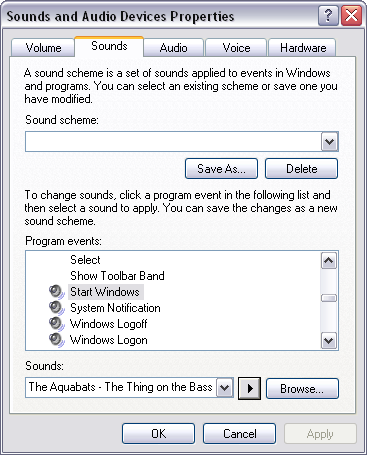
Changing your Windows Startup Sound:
Open up your Control Panel
Click on “Sounds and Audio Devices”
Go into the “Sounds” Tab
Scroll down to “Start Windows”
Click “Browse”
Select the file you have just changed.
You can test it by pressing the play button to make sure you have the right one.

Restart your computer:
The final step is to test out your new creation. Restart your computer and see how it all sounds and if it is the correct length. Try to open a program immediately after the sound sample is finished and ensure that it loads up swiftly.

Tuesday, August 2, 2011

Getting into Windows Safe Mode.


Reason

If you cannot boot into normal Windows mode or cannot troubleshoot because of errors in normal mode boot into Safe Mode. Windows Safe Mode bypasses startup programs and drivers that are not required for Windows to load and will allow you to fix Windows problems


Solutions


Windows 2000 / XP users

Tip If you are running Safe Mode because you cannot get into Windows, you may want to first try loading the last known good configuration.
To get into the Windows 2000 / XP Safe mode, as the computer is booting press and hold your "F8 Key" which should bring up the "Windows Advanced Options Menu" as shown below. Use yourarrow keys to move to "Safe Mode" and press your Enter key.
Note: With some computers, if you press and hold a key as the computer is booting you will get a stuck key message. If this occurs, instead of pressing and holding the "F8 key", tap the "F8 key" continuously until you get the startup menu.
Trouble Getting into Windows 2000 or Windows XP Safe mode- If after several attempts you are unable to get into Windows 2000 or Windows XP Safe Mode as the computer is booting into Windows, turn off your computer. When the computer is turned on the next time Windows should notice that the computer did not successfully boot and give you the Safe Mode screen.


Windows Advanced Options Menu
Please select an option:
Safe Mode
Safe Mode with Networking
Safe Mode with Command Prompt
Enable Boot Logging
Enable VGA mode
Last Known Good Configuration (your most recent settings that worked)
Directory Services Restore Mode (Windows domain controllers only)
Debugging Mode
Start Windows Normally
Reboot
Return to OS Choices Menu
Use the up and down arrow keys to move the highlight to your choice.

Once you're done in Safe mode if you want to get back into Normal Windows restart the computer like you normally would and let it boot normally. Click here to get additional information about getting out of Safe mode.

Microsoft Windows Vista and Windows 7 users

Tip If you are running Safe Mode because you cannot get into Windows, you may want to first try loading the last known good configuration.
To get into the Windows Vista and Windows 7 Safe Mode, as the computer is booting press and hold your "F8 Key" which should bring up the "Windows Advanced Options Menu" as shown below. Use your arrow keys to move to "Safe Mode" and press your Enter key.
Note: With some computers if you press and hold a key as the computer is booting you will get a stuck key message. If this occurs, instead of pressing and holding the "F8 key", tap the "F8 key" continuously until you get the startup menu.
Trouble Getting into Safe mode - If after several attempts you are unable to get into Safe Mode as the computer is booting into Windows, turn off your computer. When the computer is turned on the next time Windows should notice that the computer did not successfully boot and give you the Safe Mode screen.


Choose Advanced Options for: Microsoft Windows Vista
Please select an option:
Safe Mode
Safe Mode with Networking
Safe Mode with Command Prompt
Enable Boot Logging
Enable low-resolution video (640x480)
Last Known Good Configuration (advanced)
Directory Services Restore Mode
Debugging Mode
Disable automatic restart on system failure
Disable Driver Signature Enforcement
Start Windows Normally
Description: Start Windows with only the core drivers and services. Use
when you cannot boot after installing a new device or driver.

Once you're done in Safe mode if you want to get back into Normal Windows restart the computer like you normally would and let it boot normally. Click here to get additional information about getting out of Safe mode.


Windows 98 / ME users

To get into Windows 98 / ME Safe Mode, as the computer is booting press and hold your "F8 key" on the top of your keyboard or press and hold the left or right Ctrl key as the computer is booting. If done properly you should get into the "Windows 98 / ME Startup Menu" similar to the below screen example. In this menu choose option 3 by pressing the 3 key and press enter. 
Note: With some computers if you press and hold a key as the computer is booting you will get a stuck key message. If this occurs, instead of pressing and holding the "F8 key", tap the "F8 key" continuously until you get the startup menu.

Microsoft Windows 98 Startup Menu
=============================
1. Normal
2. Logged (\BOOTLOG.TXT)
3. Safe mode
4. Step-by-step confirmation
5. Command prompt only
6. Safe mode command prompt only
Enter a choice: 1
F5=Safe Mode Shift+F5=Command prompt Shift+F8= Step-by-step confirmation [N]

Once you're done in Safe mode if you want to get back into Normal Windows restart the computer like you normally would and let it boot normally. Click here to get additional information about getting out of Safe mode.

Windows 95 users

To get into Windows 95 Safe Mode, as the computer is booting, when you either hear a beep or when you see the message "Starting Windows 95", press your F8 key on the top of your keyboard. If done properly you should get into the Windows 95 Startup menu similar to the below screen. In this menu choose option 3 by pressing the 3 key and press enter.

How do I get out of Safe Mode?

From Windows Safe Mode click Start / Shutdown and restart the computer. This will start the computer automatically back into Normal Mode.
Note: Many users believe that they are still in Safe Mode because the colors or video may not look correct. Unless in the corners of the screen it says "Safe Mode", you are not in Safe Mode. For information on how to setup your video card resolution, seedocument CH000190.
If you are rebooting the computer and it is rebooting back into Safe Mode (it does say "Safe Mode" in each of the corners), it is likely another problem exists with Windows preventing it from loading into Normal Windows. We recommend you see the basic troubleshooting section for additional ideas that may help to resolve your issue.

Which Safe Mode option should I choose?

Users who are running later versions of Windows will get several different options for different versions of Safe Mode. For example, you may have options for "Safe Mode", "Safe Mode with Networking", and "Safe Mode with Command Prompt." Below is a brief description of each of these different modes.
Safe Mode
The basic Safe Mode option is usually what most users will want to choose when troubleshooting their computer. This is the most basic Safe Mode option and has no additional support.
Safe Mode with Networking
For users needing access to the Internet or the network they're connected to while in Safe Mode users may wish to choose this option. This mode is helpful for when you need to be in Safe Mode to troubleshoot but also need access to the Internet so you can get updates, drivers, or other files to help troubleshoot your issue.
Safe Mode with Command Prompt
This Safe Mode would also allow you to have access to thecommand line (MS-DOS prompt).

Friday, July 29, 2011

Risks of Using Inbound Services


Inbound services pose a number of security risks. In this section, we focus on Telnet as an example, but the same problems, principles, and solutions apply to other authenticated services (such as nonanonymous FTP) as well.
There are three principal risks associated with allowing inbound services:
Hijacking
Having someone steal a connection after the user has authenticated himself or herself to your system.
Packet sniffing
Having someone read confidential data as it passes across the network, without interfering with the connection itself.
False authentication
Having someone who is not a valid user convince your system he or she is a valid user.

 Hijacking

Hijacking attacks allow an attacker to take over an open terminal or login session from a user who has been authenticated by the system. Hijacking attacks generally take place on a remote computer, although it is sometimes possible to hijack a connection from a computer on the route between the remote computer and your local computer.
How can you protect yourself from hijacking attacks on the remote computer? The only way is to allow connections only from remote computers whose security you trust; ideally, these computers should be at least as secure as your own. You can apply this kind of restriction by using either packet filters or modified servers. Packet filters are easier to apply to a collection of systems, but modified servers on individual systems allow you more flexibility. For example, a modified FTP server might allow anonymous FTP from any host, but authenticated FTP only from specified hosts. You can't get this kind of control from packet filtering. Connection control at the host level is available from wrappers in the TIS FWTK (the netacl program) or Wietse Venema's TCP Wrapper; these may be easier to configure than packet filters, but provide the same level of discrimination - by host only.
Hijacking by intermediate sites can be avoided using end-to-end encryption. (See the discussion of network-level encryption later in this chapter.) If you use end-to-end encryption, intermediate sites won't be able to encrypt the data stream properly (because they don't know the appropriate key), and therefore won't be able to hijack sessions traversing them.
Hijacking is a fairly technical attack. The overall risk to an organization from hijacking attacks is probably pretty small. Most sites choose to accept this small risk and allow some accounts to access systems from anywhere on the Internet. You may decide that hijacking is an acceptable risk for your own organization, particularly if you are able to minimize the number of accounts that have full access and the time they spend logged in remotely. However, you probably do not want to allow hundreds of people to log in from anywhere on the Internet. Similarly, you do not want to allow users to log in consistently from particular remote sites without taking special precautions.

 Packet Sniffing

Attackers may not need to hijack a connection in order to get the information you want to keep secret. By simply watching packets pass - anywhere between the remote site and your site - they can see any information that is being transferred. Packet sniffing programs automate this watching of packets.
Sniffers may go after passwords or data. There are different risks associated with each type of attack. Protecting your passwords against sniffing is easy: use one of the several mechanisms described later in this chapter to use nonreusable passwords. With nonreusable passwords, it doesn't matter if the password is captured by a sniffer; it's of no use to them, because it cannot be reused.
Protecting your data against sniffers is more difficult. You could encrypt the data at your site if you always knew in advance which data to encrypt, and if you could rely on the remote site to have the appropriate decryption programs. It isn't safe for a user to ask for data to be encrypted while the user is logged in across the network; the sniffer will see the commands issued by the user (perhaps even the key used for encryption), and may be able to use that information to decrypt the data. If the user doesn't provide a key directly, the system has to somehow use a stored key, which might be compromised in other ways (such as a break-in to the system doing the encryption).
Unfortunately, encryption in advance is not practical. It may serve if you need to transfer files occasionally, but it isn't going to provide any kind of meaningful connection. In order to preserve data confidentiality for real interactive access, you'll need end-to-end encryption. Most end-to-end encryption systems require advance coordination between the two ends in order to set the system up. If you have ongoing sensitive interactions with particular sites, however, it may be worth the effort.
As we've described for hijacking, if only a small number of people from a site are doing occasional work from random hosts over the Internet, most organizations are willing to accept the relatively small risk associated with the sniffing of data. However, you need to make sure that nobody at your site purposefully accesses confidential information across the Internet without taking precautions. Moreover, you certainly do not want to set up situations in which confidential information consistently crosses the Internet unencrypted. For example, you would not want a human resources person to work from home on your unencrypted personnel files across the Internet.

 False Authentication

The third main risk to inbound services is false authentication: the subversion of the authentication that you require of your users, so that an attacker can successfully masquerade as one of your users.
In most cases, if you have a secret you want to pass across the network, you can encrypt the secret and pass it that way. There is one case in which the encryption solution does not work, and that is the case in which information does not have to be understood to be used. For instance, encrypting passwords will not work, because an attacker who is using packet sniffing can simply intercept and resend the encrypted password without having to decrypt it. (This is called a playback attack, because the attacker records an interaction and plays it back later.) Therefore, dealing with authentication across the Internet requires something more complex than encrypting passwords. What you need is an authentication method where the data that passes across the network is nonreusable, so an attacker can't capture it and play it back.

Wednesday, July 27, 2011

Find and delete bad Windows shortcuts


Use the free Bad Shortcut Killer to easily find and delete any bad Microsoft Windows shortcuts that have been left behind by Windows programs that have been uninstalled.
How to use this program
  1. Download Bad Shortcut Killer.
  2. During the install make sure to only keep the checkboxes to install Bing checked if you want Bing to be installed and set as your default search engine.
  3. After the program has been installed and is running click theFind Bad Shortcuts.
  4. Any bad shortcuts that are found will be listed and selected and deleted.

Generation Of Computers


Generation Of Computers

A study has provided new insight into spintronics, which has been hailed as the successor to the transistor.
According to the Cavendish Laboratory, the University of Cambridge's Department of Physics, spintronics, which exploits the electron's tiny magnetic moment, or "spin", could radically change computing due to its potential of high-speed, high-density and low-power consumption.
Spintronics research attempts to develop a spin-based electronic technology that will replace the charge-based technology of semiconductors.
While conventional technology relies on harnessing the charge of electrons, the field of spintronics depends instead on the manipulation of electrons' spin.
One of the unique properties in spintronics is that spins can be transferred without the flow of electric charge currents.
This is called "spin current" and unlike other concepts of harnessing electrons, the spin current can transfer information without generating heat in electric devices.
The major remaining obstacle to a viable spin current technology is the difficulty of creating a volume of spin current large enough to support current and future electronic devices.
However, the new Cambridge researchers in close collaboration with Professor Sergej Demokritov group at the University of Muenster, Germany, have, in part, addressed this issue.
In order to create enhanced spin currents, the researchers used the collective motion of spins called spin waves (the wave property of spins). By bringing spin waves into interaction, they have demonstrated a new, more efficient way of generating spin current.
"You can find lots of different waves in nature, and one of the fascinating things is that waves often interact with each other. Likewise, there are a number of different interactions in spin waves," Dr Hidekazu Kurebayashi, from the Microelectronics Group at the Cavendish Laboratory, said.
"Our idea was to use such spin wave interactions for generating efficient spin currents," Kurebayashi explained.
According to their findings, one of the spin wave interactions (called three-magnon splitting) generates spin current ten times more efficiently than using pre-interacting spin waves.
Additionally, the findings link the two major research fields in spintronics, namely the spin current and the spin wave interaction.

Sunday, July 24, 2011

RAM


Short for Random Access Memory, RAM, also known as main memory or system memory, is a term commonly used to describe the memory within a computer. Unlike ROM, RAM is a volatile memory and requires power; if power is lost, all data is also lost. Below is an example image of a 512MB DIMM memory stick.
Computer DIMM or dual-inline memory module
Over the evolution of computers their has been several different variations of RAM used in computer. Some of the more common examples are: DIMM, RIMM, SIMM, SO-DIMM, and SOO-RIMM

Determining how much RAM is installed and available.

To check how much RAM is available on your computer follow the below steps.
Tip Memory (RAM) and hard disk drive space are two completely different things. If you want to know how much information you can store on your computer see the how to determine how much hard drive space page

Windows Vista and 7 users
  1. Click Start
  2. In the Search box type "ram" without quotes and click theShow how much RAM is on this computer.
or
  1. Click Start
  2. Click System and Security
  3. Under System, click View amount of RAM and processor speed.
View used resources
To determine the amount of available system resources, including memory, as well as what is currently being utilized open the Task Manager.  In the Processes tab you will be able to see what programs are using what resources. In the Performance tab you will have can see an overall picture of all the system resources.
Windows 98, ME, NT4, 2000, and XP users
  1. Click Start
  2. Click Settings
  3. Click Control Panel and double-click the Systems icon.
  4. In the General tab will be listed the amount of RAM currently installed and detected.
or
Windows 98, ME, 2000, and XP users can also run the System Information (msinfo32) program that comes pre-installed on the computer. Additional information about this program can be found on our msinfo32 definition page.
View used resources
To determine the amount of available system resources, including memory, as well as what is currently being utilized open the Task Manager.  In the Processes tab you will be able to see what programs are using what resources. In the Performance tab you will have can see an overall picture of all the system resources.
Windows 95 users
To check how much RAM is available on your computer follow the below steps.
  1. Click Start
  2. Click Settings
  3. Click Control Panel and double-click the Systems icon.
  4. In the General tab will be listed the amount of RAM currently installed and detected.
Windows 3.x users
Click File / Exit Windows. At the MS-DOS prompt type mem and press enter.
MS-DOS users
At the MS-DOS prompt type mem and press enter.
Note: MS-DOS 6.2 will not accept or recognize more than 64 megs of RAM when typing mem.
Linux / Unix users
Linux / Unix users can use top command, which will display the total memory detected by the computer, how much memory is used, and how much is free.
.

Microsoft Internet Explorer 5


Change browser download settings for .PDF, .DOC, or other file.

Question

Change browser download settings for .PDF, .DOC, or other file.

Answer

Below are the steps, in each of the major Internet browsers, to change how they behave when opening a .PDF, .DOC, or other external file.
Tip In addition to the steps mentioned below, with all browsers you can also right click any .PDF link and choose the option to Save or Save as to save the .PDF file.
Internet Explorer users
Not available. Suggest using above Tip.
Mozilla Firefox users
  1. Open Mozilla Firefox
  2. Click Tools and then Options
  3. Within the Options window click Applications
  4. Select the Content Type you wish to adjust. For example, if you want to change how a .PDF file opens in Firefox, selectAdobe Acrobat Document.
  5. In the Action section, change the action to how you wish to open the file. If you want to download .PDF files instead of opening them, select Save file.
Opera users
  1. Open Opera
  2. Click Tools and then Preferences
  3. In the Advanced tab click Downloads
  4. Locate and highlight the file extension you wish to adjust. For example, pdf (or application/pdf). Tip You can sort these columns.
  5. Once highlighted, click the Edit button.
  6. Within the file type window, specify how you wish for the file to be handled.

How can I clear my browsing history on exit?

Question

How can I clear my browsing history on exit?

Answer

Note: Following the steps in this document will clear your Internet browser browsing history each time you exit the browser. Although this may help protect your privacy it will also slow down your overall Internet experience. See how to clear your Internet browser history once for steps on how to clear your history one time.
Microsoft Internet Explorer users
  1. Click Tools and then Internet Options.
  2. Click the Settings button under Browsing history.
  3. Change the days to keep pages in history to 0.
  4. Click Ok.
Mozilla Firefox users
  1. Click Tools and then Options.
  2. Click Privacy.
  3. Under Private Data check the Always clear my private data when I close Firefox check box.
  4. Click Ok.
Opera users
  1. Click Tools and then Preferences.
  2. Click the Advanced tab.
  3. Click History.
  4. Set the Addresses to 0
  5. Click Ok.

Removing the browsers printed page header and footer.

Question

Removing browsers printed page header and footer.

Answer

When any web page from the Internet all Internet browsers will automatically print the date, time, page title, or URL of that page on the header or footer. If you wish to have this information not displayed on the top or bottom of your printed pages follow the below steps for the browser you're using. These options are also customizable and will allow you to change what and where something is printed if you want to keep something but remove other settings.
Microsoft Internet Explorer users
  1. Open Internet Explorer
  2. Press the Alt key to get the drop down menus and click File.
  3. Click Page Setup.
  4. Remove "&w&bPage &p of &P" from the header if you wish to not have a header printed and "&u&b&d" from the Footer if you do not wish to have a footer printed.
If you want to change these settings or only want to print a specific value use the values in the below table you want in either the header or footer. The codes are case sensitive.
CodeDescriptionExample
 Leaving blank will not print anything 
&&Print an ampersand&
&bSeparate text
Left text Right text
&dNumber only date04/11/2008
&DDate in long formatSaturday, April 11, 2009
&pCurrent page1
&PTotal printed pages3
&tTime9:12:25 AM
&TTime in 24-hour format13:12:25 PM
&uPage URLhttp://www.computerhope.com/
&wWindow titleComputer Hope
TextTyping any other text prints that textExample text
Mozilla Firefox users
  1. Open Mozilla Firefox
  2. Click File.
  3. Click Page Setup.
  4. Click the Margins & Headers/Footers tab.
  5. Change the top three and bottom three drop down menus to "--blank--" if you wish to remove all the headers and footers.
If you want to change these settings, select what you wanted to be printed from the drop down menu.
Opera users
  1. Open Opera
  2. Click File.
  3. Click Print Options.
  4. Uncheck "Print headers and footers."

Disable printing the background in Internet Explorer.

Question

Disable printing the background in Internet Explorer.

Answer

When printing in Internet Explorer, if you don't want to print the background on a picture or document, follow the steps below:
  1. Click Start.
  2. Click Control Panel.
  3. Click Network and Internet.
  4. Click Internet Options.
  5. Click Advanced.
  6. Make sure 'Print background colors and images' is unchecked.
  7. Click Ok.

Can I have more than one Internet browser installed?

Question

Can I have more than one Internet browser installed?

Answer

Yes, in fact it's something we recommend. Many Microsoft Windows users are under the impression that they're stuck with Microsoft Internet Explorer as their only browser. However, a browser is a software program, and like other software programs, you can have as many on your computer as you like with no conflicts, since they all act independently. Below is a listing of the top alternative browsers you may want to consider trying.
Alternative browsers
Why should I run an alternative browser?
Often because an alternative browser may have something that is not available with the browser you're currently using. Many times we hear from users who try another browser how much they like the look or feel of the new browser, how much faster it is, or how many more options or add-ons are available that they like.
For users who are designing web sites, having more than one browser is a must since often browsers may display how your page is laid out differently.
Is it safe to run multiple browser at the same time?
Yes, because they all act independently, you can run different browsers at the same time.

A jpg image opens in Firefox but not Internet Explorer.

Question

A jpg image opens in Firefox but not Internet Explorer.

Answer

Microsoft Internet Explorer 8.0 dropped support for jpeg images saved as CMYK and now only supports images saved in RGB mode. Below is an example and easy way to verify this issue. In the below example, we have two images; one saved in CMYK and the other saved as RGB.
CYMK Image
CYMK example image
RGB Image
RGB example image
If this issue exists, the CMYK image will appear as a red X or broken image in Internet Explorer. However, opening this page in Chrome or Firefox should show both images. If both images are visible to Internet Explorer, this is not the issue with your version of Internet Explorer.
Fixing this issue
Image editors such as Adobe Photoshop, The Gimp, and others is capable of identifying if a jpg image is a CMYK image and saving a CYMK jpg as a RGB jpg. Online services can also be used to convert any JPG image into a RGB image.

Microsoft Internet Explorer 4


Getting address range reserved by hhctrl.ocx for Windows System DLLs error.

Question

Getting address range reserved by hhctrl.ocx for Windows system DLLs error.

Answer

After installing the Microsoft security updates 925902 and 928843 any other third-party software program that loads the hhctrl.ocx before user32.dll will generate the below error or an error similar to the below example.
The system DLL user32.dll was relocated in memory. The application will not run properly. The relocation occurred because the DLL C:\Windows\System32\Hhctrl.ocx occupied an address range reserved for Windows system DLLs. The vendor supplying the DLL should be contacted for a new DLL.
To resolve this issue users must be running Microsoft Windows XP with Service Pack 2 installed and get the hotfix provided by Microsoft on KB935448.

Enable the missing File menu bar.

Question

Enable the missing Windows File menu bar.

Answer

New versions of Microsoft programs including Microsoft Windows Media Player, Internet Explorer 7, and Office 07 are getting rid of the traditional menu bar. Below are the steps that can be followed to enable this menu bar either temporarily or permanently in each of these programs.
Use the Alt key
At any time a user can press their Alt key on the keyboard to temporarily display the Window menu bar or a listing of the items that are normally displayed on this bar.
This will allow users to keep the menu bar hidden and only use the bar if and when needed. If you wish for this bar to always be displayed follow the below steps.
Right-click top of program window.
If you wish for the menu to be permanently displayed follow the below steps.
Windows Media Player
Press the Alt key and click Show Classic Menu.
Internet Explorer 7
Right-click on an empty portion of the top of the Window. For example, right-click next to the Favorites gold star and in the menu that appears click Menu Bar.

Internet Explorer error: Done, but with errors on page.

Question

Internet Explorer error: Done, but with errors on page.

Answer

User
This error is caused when the page you're attempting to view has JavaScript or other script related errors. Because this error is generated by errors that are in the code, unless you've access to edit the page you'll be unable to fix this error. However, the page will still be visible although may not have all of its intended functionality.
Is this a computer problem or will it cause my computer problems?
No. As mentioned above this is only an issue with the webpage you're loading. All other web pages should load normally.
Web designer
If you're the web designer or editor of a page that is getting this error, look at the source code and verify no errors exist in the JavaScript or other scripts used. Often this is caused by improper syntax, incomplete code, or scripts that are not placed in the proper section of the HTML. For example, some JavaScript's require some code to be in the <head> portion of the code and other portions be in the <body>.

I keep getting uses an invalid security certificate error

Question

I keep getting uses an invalid security certificate error.

Answer

While browsing the Internet using Microsoft Internet Explorer, Mozilla Firefox, or other Internet browser, you may encounter an error similar to the below example that was encountered while trying to download Apple iTunes.
Secure Connection Failed
swdlp.apple.com uses an invalid security certificate.
The certificate will not be valid until 7/8/2008 5:06 PM.
(Error code: sec_error_expired_certificate)
This issue is often caused when the date on your computer is incorrect.  Often set several months or years in the past. To correct these issues, set the date on the computer to the correct date.

Microsoft Internet Explorer 3


How can I change the font size in my browser?

Question

How can I change the font size in my browser?

Answer

Below is additional information and help with changing the font type and size in each of the major browsers; click on the below link for the browser you're using. Keep in mind that some web pages are designed to work with specific fonts or font types, and that changing the default browser font may cause the web page not to function or display properly.
Tip If you have a mouse with a wheel and are using any of the below browsers, you can quickly and easily increase and decrease the size of your fonts in your browser by holding down the Ctrl key, and while continuing to hold down the key, move the mouse wheel up or down.
Internet Explorer users
To increase, decrease, or change the default font in Microsoft Internet Explorer, follow the below steps.
  1. Open Microsoft Internet Explorer.
  2. Click Tools.
  3. Click Internet Options.
  4. Within the Internet Options window, click the Fonts button at the bottom of the General tab.
  5. Within the fonts window you can adjust the default font used in Internet Explorer. If you need additional font options, you can adjust how fonts are used by clicking the Accessibility button in the General tab.
Note: Microsoft Internet Explorer also supports the tip mentioned at the beginning of this document.
Mozilla Firefox users
To increase, decrease, or change the default font in Mozilla Firefox, follow the below steps.
  1. Open Mozilla Firefox.
  2. Click Tools.
  3. Click Options.
  4. Within the Options window, click the Content button.
  5. Within the content section you will be able to specify the default font type as well as the font size. In addition to being able to change these two settings, you can also click the Advanced button and get many more settings, such as the resolution and the minimum font size to use.
Note: Mozilla Firefox also supports the tip mentioned at the beginning of this document.
Netscape users
  1. Open Netscape.
  2. Click Tools.
  3. Click Options.
  4. Within the Options window, click the Fonts & Colors button.
  5. Once within the Fonts & Colors window you can adjust the different fonts including, the colors, resolution, and minimum font size.
Note: Netscape also supports the tip mentioned at the beginning of this document.
Opera users
  1. Open Opera.
  2. Click Tools.
  3. Click Preferences.
  4. Within the Preferences window, click the Web pages tab.
  5. Once in the Web pages tab you will be able to adjust the fonts used. If you need more settings to adjust your fonts or font size, click the Advanced tab and click the Fonts option for several dozen additional changes that can be made to the fonts.
Note: Opera also supports the tip mentioned at the beginning of this document.

Website is giving expired or invalid security certificate errors.

Question

Website is giving expired or invalid security certificate errors.

Answer

This issue is often caused when your computer's date is incorrect. Verify that your time, month, day, and especially year is correct for the area you're located in.

Web page doesn't show images, getting red x's, or broken links.

Question

Web page doesn't show images, getting red x's, or broken links.

Additional information

This document is for users having issues with displaying pictures on web pages on the Internet. If you're creating a web page and are having troubles making it display images, this document will not resolve your problems; see the HTML help section for additional information and help with HTML and web design.

Answer

Picture of broken imagesWhen browsing the Internet, a number of different issues can occur with your browser or your Internet connection that may cause some or all of the images or pictures to not appear or be displayed as a broken image as shown in the image to the right.
Below is a listing of some of the different situations that apply to this document as well as the suggestions and resolutions to fixing the issue.
Internet Explorer cannot open JPG
If the image is saved as a JPG in CMYK mode Internet Explorer 8.0 will not open these images.
Browser shows images; however, some images are missing
or
Browser displays images on every page except one
This is the most common issue you're likely to encounter while on the Internet and is almost always an issue that is being caused by the web page you're visiting and not by your computer.
Often, this issue is caused by one or more of the below reasons.
  1. The web page is not pointing to the correct location (URL) of the image.
  2. The location or computer hosting the image has moved or removed the image and the web page has not been updated since.
  3. The web page or computer hosting the image is getting so many requests that it is unable to fulfill your request and unable to send you the image.
  4. Your browser, spyware, or other protection software is blocking images from third-party web pages.
Possible solutions to this issue
See if the image is being hosted on an alternate server; and if on a different server, see if the image can be found on that server. To do this, right-click the image or broken icon and click Properties; In the Properties window the Address or URL of the image should be displayed, copy that link into your address bar and remove the name of the image. For example, if you were to do this on the above image of the example of broken images you would get:http://www.computerhope.com/issues/broken.gif take off the "broken.gif" portion of the URL to get the path of where that image is located. Some websites will then list the directory of files (Computer Hope has this feature disabled) and get you to a location to where you locate the image. This is also a good method of determining if the computer hosting the image is still active.
If you trust the site you're visiting and have spywareprotection installed on your computer, try disabling any spyware programs or other protection programs currently enabled on your computer to verify they are not blocking it.
Try visiting the web page in a few hours/days. If a site is getting visited by a lot of people on that day, it may be experiencing issues causing images to not be displayed or images may be disabled to help prevent other issues.
Try searching for the file name in a popular search engine, such as Google, to see if the image is located elsewhere. The name of the image file can be determined by using the above steps used earlier to find the location of the image. This will not resolve the missing image on the page you were visiting but may allow you to find the image being shown on a different web page.
If you're using Internet Explorer go through each of the steps on our basic Internet Explorer troubleshooting document.
If you're running Microsoft Windows, verify your hosts file is not blocking or redirecting the website you're visiting. Additional information about the Windows lmhosts file and how to edit it can be found on our lmhost file dictionary definition page.
Browser does not display any images on any page
A computer that does not display any images while on the Internet is almost always an issue with the computer you're on and not the web page you're visiting. Often, this issue is due to a configuration issue with the browser.
Note: Before trying any of the below suggestions, make sure you're not encountering an issue with your Internet connection by visiting a web page or section of web page you have never visited. This will help verify that your Internet connection is working and images are not loading. You should not need to do this; however, if you're visiting this Computer Hope page on the same computer and no images are showing on Computer Hope.
Browser configuration
Many web browsers support the ability to disable any images from being displayed to help with load time for users with slower Internet connection. Verify this option is not enabled by following the below steps.
Internet Explorer users
  1. Open Internet Explorer.
  2. Click Tools at the top of the Window.
  3. Click Internet Options.
  4. In the Internet Options window, click the Advanced tab.
  5. In the Settings under Multimedia, make sure there is a check in the "Show Pictures" checkbox.
  6. Click Ok and close and re-open the browser.
If after following the above steps you continue to have the same issues, follow each of the recommended steps in ourbasic Internet Explorer troubleshooting section. Often, going through these steps will resolve other misc. issues that can occur that also cause this issue.
Mozilla Firefox users
  1. Open Mozilla Firefox.
  2. Click Tools at the top of the Window.
  3. Click Options.
  4. In the Options window, click the Content button.
  5. Make sure there is a check in the "Load Images" checkbox.
  6. Click Ok and close and re-open the browser.
If after following the above recommendations you continue to have the same symptoms, verify you're not having a problem with your browser by trying to load web pages in a different browser. For example, if you're using Internet Explorer, download Firefox from http://www.getfirefox.com and see if it is also encountering the same issue. If you're also unable to display images in an alternative browser, it's possible your computer or network has a restriction preventing images from being displayed.


How do I create an Internet favorite / bookmark?

Question

How do I create an Internet favorites / bookmark?

Answer

Below is a listing of each of the major Internet browsers and how to create your own favorite / bookmark for that browser. See the below troubleshooting section for issues that may arise when bookmarking a page.
Internet Explorer
Creating a bookmark in Microsoft Internet Explorer can be done several different ways. Below is each of the different methods for creating a bookmark.
Right-click on a blank portion of the page and click Add to Favorites.
or
  1. Move to the page you wish to add to your Favorites.
  2. At the top of the browser window click Favorites.
  3. Click Add to Favorites.
Once one of the above steps has been completed an Add Favorite window will appear and allow you to add a favorite to your favorites list. If you encounter any problems with creating bookmarks see the below troubleshooting section.
Mozilla / Mozilla Firefox / Netscape
Creating a bookmark in Mozilla Firefox can be done several different ways. Below is each of the different methods for creating a bookmark.
Right-click on a blank portion of the page you wish to bookmark and click Bookmark This Page or press Ctrl + D.
or
  1. Move to the page you wish to bookmark.
  2. At the top of the browser window click Bookmarks
  3. Click Bookmark This Page
Once you've done one of the above steps an Add Bookmark window will appear. Specify the location you wish to save the bookmark at. If you would like to create a new folder to place this bookmark in, click the small down arrow next to the Create in selection and click the New Folder button. If you encounter any problems with creating bookmarks see the below troubleshooting section.
Opera
Creating a bookmark in Opera can be done several different ways. Below is each of the different methods for creating a bookmark.
Right-click on a blank portion of the page you wish to bookmark and click Bookmark page or press Ctrl + T.
or
  1. Move to the page you wish to bookmark.
  2. At the top of the browser window click Bookmarks.
  3. Click Bookmark page
Once you've done one of the above steps an Add bookmark window will appear and allow you to specify where you wish to save the bookmark. If you encounter any problems with creating bookmarks see the below troubleshooting section.
Troubleshooting
Unable to bookmark the exact page.
Some web pages or portions of web pages are in frames. If you bookmark the page through the file menu this will only bookmark the first found frame or page. To bookmark the page within the frame right-click on the section of the page you wish to bookmark and add the bookmark or favorite through the window that appears.
Bookmark page stops working.
Web pages that have been dynamically created, require a log in, or have frequently updated information may expire after so many hours / days. If you find your bookmark frequently becoming bad we suggest bookmarking the main page and not a sub-page. For example, bookmarkinghttp://www.computerhope.com/ and nothttp://www.computerhope.com/jargon/h/harddriv.htm
Unfortunately it's also possible that the company or person hosting the page has changed the location of the page or the page may have been removed.

Delete Internet favorite / bookmarks or otherwise organizing them.

Question

Delete Internet favorites / bookmarks or otherwise organizing them.

Answer

Internet Explorer
  1. Open Internet Explorer
  2. Click Favorites
  3. Click Organize Favorites
Deleting:
Highlight the favorite or folder you wish to delete and press thedelete key on your keyboard or click the Delete button.
Tip From the Favorites drop-down-menu you can also right-click the favorite or folder and clicking Delete from the menu.
Organizing:
Drag-and-drop your favorites or folders to re-organize them.
You can also move favorites and folders by highlighting them and clicking the Move button.
Renaming:
Highlight the favorite or folder you wish to rename and click the Rename button or right-click the favorite or folder you wish to rename and click Rename from the menu that appears.
Tip This can also be done through the Favorites drop-down-menu by right-clicking on the favorite or folder you wish to rename and clicking Rename from the menu.
Mozilla / Mozilla Firefox / Netscape
  1. Open the browser.
  2. Click Bookmarks at the top of the window.
  3. Click Manage Bookmarks.
Deleting:
Highlight the bookmark or folder you wish to delete and press thedelete key on your keyboard or click Edit at the top of the Bookmarks Manager window and click Delete.
Tip From the Bookmarks drop-down-menu you can also right-click the bookmark or folder and clicking Delete from the menu.
Organizing:
Drag-and-drop your bookmarks or folders to re-organize them.
You can also move the bookmarks and folders by highlighting each bookmark or folder you wish to move and clicking the Move button and selecting the new folder you wish to move them to.
Renaming:
Highlight the bookmark or folder you wish to rename and click the Rename button or right-click the bookmark, click Properties, and change the name of the properties of the bookmark.
Tip This can also be done through the Bookmarks drop-down-menu by right-clicking on the bookmark or folder you wish to rename and clicking Properties and changing the name within the properties.
Opera
  1. Open Opera
  2. Click Bookmarks at the top of the window.
  3. Click Manage bookmarks
Deleting:
Highlight the bookmark or folder you wish to delete and press thedelete key on your keyboard or click the Delete button.
Organizing:
Drag-and-drop your bookmarks or folders to re-organize them.
Renaming:
Highlight the bookmark or folder you wish to rename and right-click the icon and click Properties or click the Properties button. Within the properties change the Name and click Ok.

How can I display the File, Edit, View menu in Internet Explorer?

Question

How can I display the File, Edit, View menu in Internet Explorer?

Answer

Users coming from earlier versions of Internet Explorer may be shocked to find out that the File, Edit, View, Favorites, Tools, and Help menu located at the top of all previous versions of Internet Explorer is now gone by default. This menu is now hidden by default but can be shown by following either of the below steps.
Temporarily show the File, Edit, View menu
Press the Alt key on the keyboard.
Pressing the Alt key will temporarily show this menu and allow users to use any of its features. If anything but the menu is clicked it will hide again.
Permanently show the File, Edit, View menu
If you wish to have the File, Edit, View menu always shown like previous versions of Internet Explorer follow the below steps.
  1. Click the Tools button.
  2. Click Menu bar.
or
  1. Press the Alt key to temporarily show the File menu.
  2. Click View.
  3. Click Toolbars.
  4. Click Menu Bar.
This will place a check next to the Menu Bar option and cause it to always be displayed. If you wish to have this bar auto hidden again, following either of the above steps will set it back to the default hidden setting.

What is the hhctrl.ocx file?

Question

What is the hhctrl.ocx file?

Answer

What is hhctrl.ocx?
The hhctrl.ocx file is a file created by Microsoft that has a description of "Microsoft HTML Help Control." This file is anActiveX file that enables a user to view their help interface in Microsoft Internet Explorer.
This file is located in the c:\windows\system32 or c:\winnt\system32 directory and can also be found in the c:\i386 directory.
Is this file a security threat?
This file has been identified on December 25, 2004 as a vulnerable file that could allow a remote attacker to gain access to information on Windows 2000, XP, NT Server, and 2003 computer running Internet Explorer 6 SP1. If however you're running Internet Explorer 7 or later and Windows is up-to-date you should not be effected by this issue.
Is this file a spyware, Trojan, or virus?
The hhctrl.ocx file included with Microsoft Internet Explorer is not spyware, a Trojan, or a virus. However, like any file on your computer it can become corrupted by a virus or trojan.antivirus programs can detect and clean this file if it has become infected. Because this file is part of Internet Explorer users should never delete or remove this file if they think it is infected, let the antivirus program handle it.
Can I delete this file?
It is not recommended that users delete this file. Deleting the file can cause issues with Internet Explorer. If you believe your computer is vulnerable to the above security threat making sure Windows is up-to-date will correct this issue.