Saturday, October 15, 2011

Make backup your system


Introduction

One of the most important rules to learn when using a computer, and especially when storing data on a computer, is to always keep backups. This may sound paranoid, but occasions can happen when you lose lots of work, photos and documents, and the user is the only person to blame.

Backing up your data can protect you from the worst, in the event that your hard disk fails or files are accidentally erased. Windows XP includes a few handy tools that allow you to back up data with a few clicks of the mouse, but it is also very easy (and sometimes advisable) to backup your data manually.

Specifications

Windows XP does include backup software, but for some reason it is not installed as default with a Windows XP Home Edition installation. To install the software you must do the following steps:
  • Insert your Windows XP Home Edition CD in the CD-Rom drive
  • Find the folder X:\Valueadd\msft\ntbackup (where X is your CD-Rom letter)
  • Run NTBACKUP.NSI and install the application
If you already have Windows XP Pro, you will already have a slightly more feature full version of this handy tool installed. This tool is perfectly adequate for most home users but advanced users may wish to invest in better backup software and business users may even require a hardware based solution.

To run the backup software, go to Start -> All Programs -> Accessories -> System Tools -> Backup

The software will automatically start in Wizard mode, which for the purposes of this guide should be adequate for most users. As we wish to backup data, simply click Backup Files and Settings and then next.

Your next menu selection depends on your situation, but the recommended options would be Everyone's documents and settings or All information on this computer. The first option would simply backup documents and settings, as the name would suggest - this would include your Internet Favorites, Home Page, E-Mails, and other system settings. The latter option would create a backup of your entire hard drive, including software and games that you may have installed. This option would take significantly more time to backup/restore, and would also require some mass storage device (i.e. a large 2nd hard drive, or a DVD Writer).

Depending on which option suits your purpose best, you can proceed to the next page which requires you to select a location for your backup. The best option would be to backup only your documents and settings, and then choose to backup the files to your main drive. 

Once the location is set, the tool proceeds to scan for all files to be included, and copies the files into a single backup file. Once this is done, you can copy this file over to a CDR disc and store it in a safe place. It would have made sense for Microsoft to include the ability to backup straight to CD, but they opted not to include this feature.

Manual Backups

If you choose not to backup data with the included Backup tool, it is very easy to do this manually. There are several important folder locations that you will need to know, which will enable you to make a copy of important parts of your data:

My Documents:

This is probably the most important folder for most users, as it will contain all of the work created using many data processing applications (i.e Word, Excel, PowerPoint) and many Music/Photo files. The folder location is:

C:\Documents and Settings\User Name\My Documents\

You will need to backup all files in this folder to make sure no data is lost.

E-Mails:

The most common e-mail clients are Microsoft Outlook and Outlook Express, both of which are easy to backup data from. The location of the data files for Microsoft Outlook is in the following folder:

C:\Documents and Settings\User Name\Local Settings\Application Data\Microsoft\Outlook\

If you use Outlook Express, the files are located in:


How-to: Make your own Windows XP startup sound


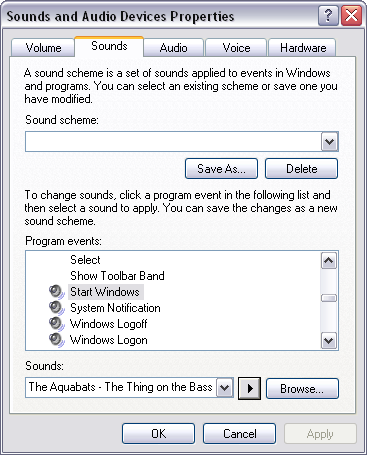
Changing your Windows Startup Sound:
Open up your Control Panel
Click on “Sounds and Audio Devices”
Go into the “Sounds” Tab
Scroll down to “Start Windows”
Click “Browse”
Select the file you have just changed.
You can test it by pressing the play button to make sure you have the right one.

Restart your computer:
The final step is to test out your new creation. Restart your computer and see how it all sounds and if it is the correct length. Try to open a program immediately after the sound sample is finished and ensure that it loads up swiftly.

Tuesday, August 2, 2011

Getting into Windows Safe Mode.


Reason

If you cannot boot into normal Windows mode or cannot troubleshoot because of errors in normal mode boot into Safe Mode. Windows Safe Mode bypasses startup programs and drivers that are not required for Windows to load and will allow you to fix Windows problems


Solutions


Windows 2000 / XP users

Tip If you are running Safe Mode because you cannot get into Windows, you may want to first try loading the last known good configuration.
To get into the Windows 2000 / XP Safe mode, as the computer is booting press and hold your "F8 Key" which should bring up the "Windows Advanced Options Menu" as shown below. Use yourarrow keys to move to "Safe Mode" and press your Enter key.
Note: With some computers, if you press and hold a key as the computer is booting you will get a stuck key message. If this occurs, instead of pressing and holding the "F8 key", tap the "F8 key" continuously until you get the startup menu.
Trouble Getting into Windows 2000 or Windows XP Safe mode- If after several attempts you are unable to get into Windows 2000 or Windows XP Safe Mode as the computer is booting into Windows, turn off your computer. When the computer is turned on the next time Windows should notice that the computer did not successfully boot and give you the Safe Mode screen.


Windows Advanced Options Menu
Please select an option:
Safe Mode
Safe Mode with Networking
Safe Mode with Command Prompt
Enable Boot Logging
Enable VGA mode
Last Known Good Configuration (your most recent settings that worked)
Directory Services Restore Mode (Windows domain controllers only)
Debugging Mode
Start Windows Normally
Reboot
Return to OS Choices Menu
Use the up and down arrow keys to move the highlight to your choice.

Once you're done in Safe mode if you want to get back into Normal Windows restart the computer like you normally would and let it boot normally. Click here to get additional information about getting out of Safe mode.

Microsoft Windows Vista and Windows 7 users

Tip If you are running Safe Mode because you cannot get into Windows, you may want to first try loading the last known good configuration.
To get into the Windows Vista and Windows 7 Safe Mode, as the computer is booting press and hold your "F8 Key" which should bring up the "Windows Advanced Options Menu" as shown below. Use your arrow keys to move to "Safe Mode" and press your Enter key.
Note: With some computers if you press and hold a key as the computer is booting you will get a stuck key message. If this occurs, instead of pressing and holding the "F8 key", tap the "F8 key" continuously until you get the startup menu.
Trouble Getting into Safe mode - If after several attempts you are unable to get into Safe Mode as the computer is booting into Windows, turn off your computer. When the computer is turned on the next time Windows should notice that the computer did not successfully boot and give you the Safe Mode screen.


Choose Advanced Options for: Microsoft Windows Vista
Please select an option:
Safe Mode
Safe Mode with Networking
Safe Mode with Command Prompt
Enable Boot Logging
Enable low-resolution video (640x480)
Last Known Good Configuration (advanced)
Directory Services Restore Mode
Debugging Mode
Disable automatic restart on system failure
Disable Driver Signature Enforcement
Start Windows Normally
Description: Start Windows with only the core drivers and services. Use
when you cannot boot after installing a new device or driver.

Once you're done in Safe mode if you want to get back into Normal Windows restart the computer like you normally would and let it boot normally. Click here to get additional information about getting out of Safe mode.


Windows 98 / ME users

To get into Windows 98 / ME Safe Mode, as the computer is booting press and hold your "F8 key" on the top of your keyboard or press and hold the left or right Ctrl key as the computer is booting. If done properly you should get into the "Windows 98 / ME Startup Menu" similar to the below screen example. In this menu choose option 3 by pressing the 3 key and press enter. 
Note: With some computers if you press and hold a key as the computer is booting you will get a stuck key message. If this occurs, instead of pressing and holding the "F8 key", tap the "F8 key" continuously until you get the startup menu.

Microsoft Windows 98 Startup Menu
=============================
1. Normal
2. Logged (\BOOTLOG.TXT)
3. Safe mode
4. Step-by-step confirmation
5. Command prompt only
6. Safe mode command prompt only
Enter a choice: 1
F5=Safe Mode Shift+F5=Command prompt Shift+F8= Step-by-step confirmation [N]

Once you're done in Safe mode if you want to get back into Normal Windows restart the computer like you normally would and let it boot normally. Click here to get additional information about getting out of Safe mode.

Windows 95 users

To get into Windows 95 Safe Mode, as the computer is booting, when you either hear a beep or when you see the message "Starting Windows 95", press your F8 key on the top of your keyboard. If done properly you should get into the Windows 95 Startup menu similar to the below screen. In this menu choose option 3 by pressing the 3 key and press enter.

How do I get out of Safe Mode?

From Windows Safe Mode click Start / Shutdown and restart the computer. This will start the computer automatically back into Normal Mode.
Note: Many users believe that they are still in Safe Mode because the colors or video may not look correct. Unless in the corners of the screen it says "Safe Mode", you are not in Safe Mode. For information on how to setup your video card resolution, seedocument CH000190.
If you are rebooting the computer and it is rebooting back into Safe Mode (it does say "Safe Mode" in each of the corners), it is likely another problem exists with Windows preventing it from loading into Normal Windows. We recommend you see the basic troubleshooting section for additional ideas that may help to resolve your issue.

Which Safe Mode option should I choose?

Users who are running later versions of Windows will get several different options for different versions of Safe Mode. For example, you may have options for "Safe Mode", "Safe Mode with Networking", and "Safe Mode with Command Prompt." Below is a brief description of each of these different modes.
Safe Mode
The basic Safe Mode option is usually what most users will want to choose when troubleshooting their computer. This is the most basic Safe Mode option and has no additional support.
Safe Mode with Networking
For users needing access to the Internet or the network they're connected to while in Safe Mode users may wish to choose this option. This mode is helpful for when you need to be in Safe Mode to troubleshoot but also need access to the Internet so you can get updates, drivers, or other files to help troubleshoot your issue.
Safe Mode with Command Prompt
This Safe Mode would also allow you to have access to thecommand line (MS-DOS prompt).

Friday, July 29, 2011

Risks of Using Inbound Services


Inbound services pose a number of security risks. In this section, we focus on Telnet as an example, but the same problems, principles, and solutions apply to other authenticated services (such as nonanonymous FTP) as well.
There are three principal risks associated with allowing inbound services:
Hijacking
Having someone steal a connection after the user has authenticated himself or herself to your system.
Packet sniffing
Having someone read confidential data as it passes across the network, without interfering with the connection itself.
False authentication
Having someone who is not a valid user convince your system he or she is a valid user.

 Hijacking

Hijacking attacks allow an attacker to take over an open terminal or login session from a user who has been authenticated by the system. Hijacking attacks generally take place on a remote computer, although it is sometimes possible to hijack a connection from a computer on the route between the remote computer and your local computer.
How can you protect yourself from hijacking attacks on the remote computer? The only way is to allow connections only from remote computers whose security you trust; ideally, these computers should be at least as secure as your own. You can apply this kind of restriction by using either packet filters or modified servers. Packet filters are easier to apply to a collection of systems, but modified servers on individual systems allow you more flexibility. For example, a modified FTP server might allow anonymous FTP from any host, but authenticated FTP only from specified hosts. You can't get this kind of control from packet filtering. Connection control at the host level is available from wrappers in the TIS FWTK (the netacl program) or Wietse Venema's TCP Wrapper; these may be easier to configure than packet filters, but provide the same level of discrimination - by host only.
Hijacking by intermediate sites can be avoided using end-to-end encryption. (See the discussion of network-level encryption later in this chapter.) If you use end-to-end encryption, intermediate sites won't be able to encrypt the data stream properly (because they don't know the appropriate key), and therefore won't be able to hijack sessions traversing them.
Hijacking is a fairly technical attack. The overall risk to an organization from hijacking attacks is probably pretty small. Most sites choose to accept this small risk and allow some accounts to access systems from anywhere on the Internet. You may decide that hijacking is an acceptable risk for your own organization, particularly if you are able to minimize the number of accounts that have full access and the time they spend logged in remotely. However, you probably do not want to allow hundreds of people to log in from anywhere on the Internet. Similarly, you do not want to allow users to log in consistently from particular remote sites without taking special precautions.

 Packet Sniffing

Attackers may not need to hijack a connection in order to get the information you want to keep secret. By simply watching packets pass - anywhere between the remote site and your site - they can see any information that is being transferred. Packet sniffing programs automate this watching of packets.
Sniffers may go after passwords or data. There are different risks associated with each type of attack. Protecting your passwords against sniffing is easy: use one of the several mechanisms described later in this chapter to use nonreusable passwords. With nonreusable passwords, it doesn't matter if the password is captured by a sniffer; it's of no use to them, because it cannot be reused.
Protecting your data against sniffers is more difficult. You could encrypt the data at your site if you always knew in advance which data to encrypt, and if you could rely on the remote site to have the appropriate decryption programs. It isn't safe for a user to ask for data to be encrypted while the user is logged in across the network; the sniffer will see the commands issued by the user (perhaps even the key used for encryption), and may be able to use that information to decrypt the data. If the user doesn't provide a key directly, the system has to somehow use a stored key, which might be compromised in other ways (such as a break-in to the system doing the encryption).
Unfortunately, encryption in advance is not practical. It may serve if you need to transfer files occasionally, but it isn't going to provide any kind of meaningful connection. In order to preserve data confidentiality for real interactive access, you'll need end-to-end encryption. Most end-to-end encryption systems require advance coordination between the two ends in order to set the system up. If you have ongoing sensitive interactions with particular sites, however, it may be worth the effort.
As we've described for hijacking, if only a small number of people from a site are doing occasional work from random hosts over the Internet, most organizations are willing to accept the relatively small risk associated with the sniffing of data. However, you need to make sure that nobody at your site purposefully accesses confidential information across the Internet without taking precautions. Moreover, you certainly do not want to set up situations in which confidential information consistently crosses the Internet unencrypted. For example, you would not want a human resources person to work from home on your unencrypted personnel files across the Internet.

 False Authentication

The third main risk to inbound services is false authentication: the subversion of the authentication that you require of your users, so that an attacker can successfully masquerade as one of your users.
In most cases, if you have a secret you want to pass across the network, you can encrypt the secret and pass it that way. There is one case in which the encryption solution does not work, and that is the case in which information does not have to be understood to be used. For instance, encrypting passwords will not work, because an attacker who is using packet sniffing can simply intercept and resend the encrypted password without having to decrypt it. (This is called a playback attack, because the attacker records an interaction and plays it back later.) Therefore, dealing with authentication across the Internet requires something more complex than encrypting passwords. What you need is an authentication method where the data that passes across the network is nonreusable, so an attacker can't capture it and play it back.

Wednesday, July 27, 2011

Find and delete bad Windows shortcuts


Use the free Bad Shortcut Killer to easily find and delete any bad Microsoft Windows shortcuts that have been left behind by Windows programs that have been uninstalled.
How to use this program
  1. Download Bad Shortcut Killer.
  2. During the install make sure to only keep the checkboxes to install Bing checked if you want Bing to be installed and set as your default search engine.
  3. After the program has been installed and is running click theFind Bad Shortcuts.
  4. Any bad shortcuts that are found will be listed and selected and deleted.

Generation Of Computers


Generation Of Computers

A study has provided new insight into spintronics, which has been hailed as the successor to the transistor.
According to the Cavendish Laboratory, the University of Cambridge's Department of Physics, spintronics, which exploits the electron's tiny magnetic moment, or "spin", could radically change computing due to its potential of high-speed, high-density and low-power consumption.
Spintronics research attempts to develop a spin-based electronic technology that will replace the charge-based technology of semiconductors.
While conventional technology relies on harnessing the charge of electrons, the field of spintronics depends instead on the manipulation of electrons' spin.
One of the unique properties in spintronics is that spins can be transferred without the flow of electric charge currents.
This is called "spin current" and unlike other concepts of harnessing electrons, the spin current can transfer information without generating heat in electric devices.
The major remaining obstacle to a viable spin current technology is the difficulty of creating a volume of spin current large enough to support current and future electronic devices.
However, the new Cambridge researchers in close collaboration with Professor Sergej Demokritov group at the University of Muenster, Germany, have, in part, addressed this issue.
In order to create enhanced spin currents, the researchers used the collective motion of spins called spin waves (the wave property of spins). By bringing spin waves into interaction, they have demonstrated a new, more efficient way of generating spin current.
"You can find lots of different waves in nature, and one of the fascinating things is that waves often interact with each other. Likewise, there are a number of different interactions in spin waves," Dr Hidekazu Kurebayashi, from the Microelectronics Group at the Cavendish Laboratory, said.
"Our idea was to use such spin wave interactions for generating efficient spin currents," Kurebayashi explained.
According to their findings, one of the spin wave interactions (called three-magnon splitting) generates spin current ten times more efficiently than using pre-interacting spin waves.
Additionally, the findings link the two major research fields in spintronics, namely the spin current and the spin wave interaction.